Build one exam series at a time. Start with the information everyone shares, then add candidates, rooms and the documents your school needs.
Where to go Sidebar → New Profile
Have ready
Your school details, exam-board paper list, candidate entries, exam dates and room information.
On your screen Sidebar → New Profile. Select the image to enlarge it.
1
Create a clearly named profile
Choose New Profile and use a name such as “Example School - Summer 2027”. Check Current Profile before entering any data.
2
Build in order
Complete Settings, then follow Data Center: Configuration, People & Staff, Candidates, and Logistics. Add the exam catalog before selecting papers for candidates.
3
Check a small sample first
Add a few candidates, including one with extra time. Run Full Analysis, check a student timetable, and preview a register and seating plan before adding the whole year group.
Before moving on
The active profile is correct, each sample candidate has the expected exams, and the output shows the right date, room and seat.
Remember
Try the example profile and welcome tour before using your live exam series. Keep a separate profile for each series.
A practical first-session route
Profile and school settings
Exam catalog and master dates
Staff and candidate information
Rooms, seats and access arrangements
Analysis and a checked sample pack
Save a backup, then prepare the full series
Start & saveTopic 02 / 20
Profiles, saving and recovery
A profile contains one exam series. The browser working copy, a downloaded backup and a cloud copy serve different purposes.
Where to go Sidebar save controls · Settings → Profiles & Backups
Have ready
Check the profile name in the sidebar. Before replacing data, save a copy you can return to.
On your screen Sidebar save controls · Settings → Profiles & Backups. Select the image to enlarge it.
1
Save while you work
Use the page’s Save button where one is shown. Save Locally downloads a profile backup to your computer; keep it in your school’s approved storage.
2
Save to the cloud when available
Choose Save to Cloud and wait for confirmation. On another computer, open Cloud Profiles, refresh the list and explicitly open the required copy.
3
Recover carefully
Use Profiles & Backups to download, duplicate or rename a profile, create a snapshot, or inspect recovery options. Read the destination and replacement confirmation before importing or restoring.
Before moving on
You have a recent downloaded backup or a confirmed cloud save, and you know which copy you are opening.
Remember
Do not assume that switching profiles silently pulls a newer version. Ordinary edits are not a substitute for an explicit cloud save; optional background saving may be configured separately.
Which save do I need?
Page Save
Applies edits in that workspace.
Save Locally
Downloads a portable profile backup.
Save to Cloud
Saves the profile online when your account includes cloud access.
Cloud Profiles
Finds and opens an online copy.
Snapshot / duplicate
Keeps a recovery point or a separate working version.
Start & saveTopic 03 / 20
Set up your school
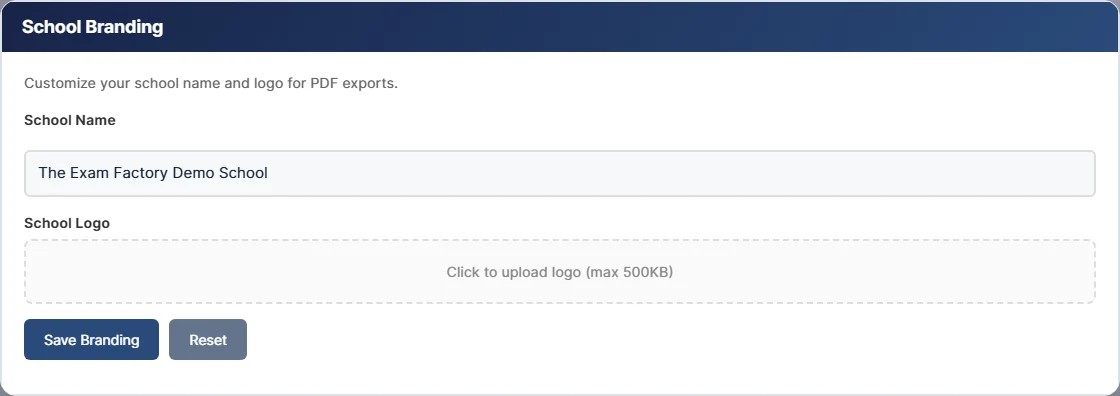
Set your school identity and the defaults that shape schedules and printouts. The school badge and The Exam Factory branding have different roles.
Where to go Settings
Have ready
Your school logo, centre numbers and agreed exam-office settings.
On your screen Settings. Select the image to enlarge it.
1
Add your school identity
Open Branding, enter School Name, upload the school logo and choose Save Branding. Enter the correct Centre Numbers for the boards you use.
2
Check planning and print defaults
In General Settings, review date/time display, periods, the minimum gap between papers, seating order and output-safety choices. Save General Settings.
3
Choose a comfortable appearance
Appearance offers Light, Dark or System. Review Exam Boards and Access Arrangements for the labels and colours your school needs. Key-time requirements are set on Key Time Supervision.
Before moving on
A sample PDF uses your school name and badge. Board and access-arrangement colours are distinct and recognisable.
Remember
The school logo upload currently accepts a file up to 500 KB. PDF logo and timestamp defaults are in General Settings. Changing the screen theme does not turn printed documents dark.
Where to make the change
School name and badge
Settings → Branding
Board-specific centre numbers
Settings → Centre Numbers
Board labels and colours
Settings → Exam Boards
Access labels and colours
Settings → Access Arrangements
AM/PM key times, or none
Key Time Supervision
Screen theme
Settings → Appearance
Data & peopleTopic 04 / 20
Build and import your data
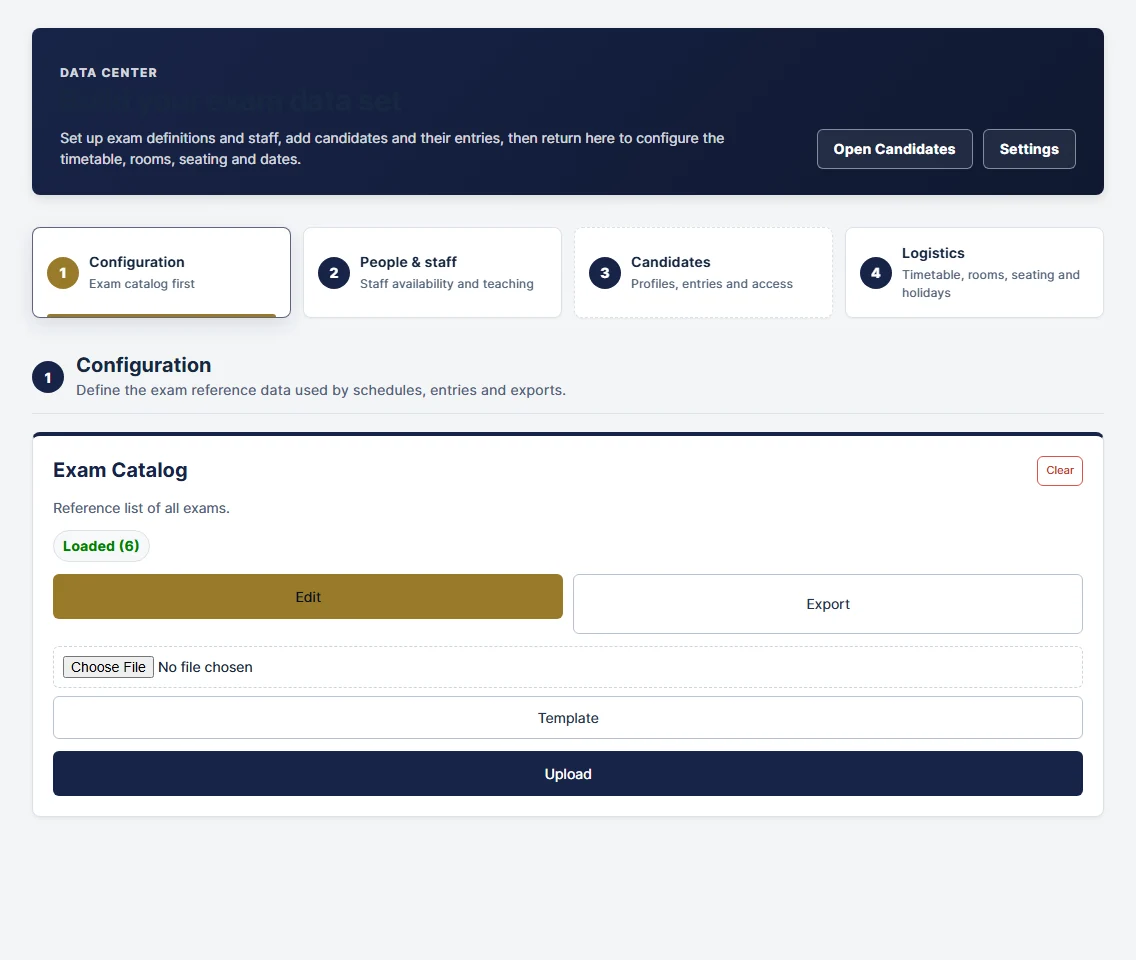
Data Center holds shared reference and scheduling information. Candidate Profiles owns students, their entries and their access arrangements.
Where to go Data Center
Have ready
Use the template from the exact data card you intend to update.
On your screen Data Center. Select the image to enlarge it.
1
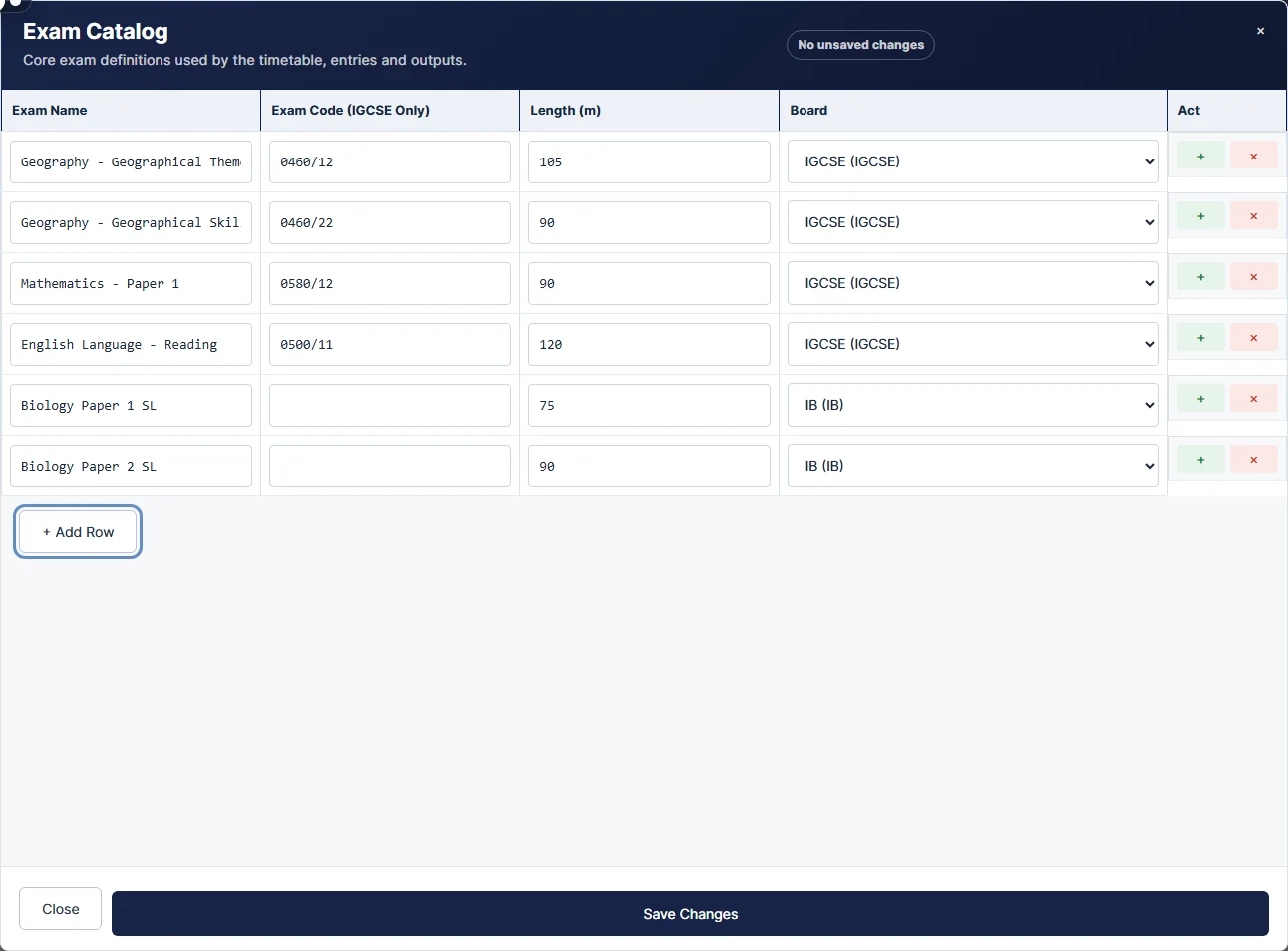
Start with the Exam Catalog
Add a consistent paper name, exam board and, where required, exam code. These identities connect candidate entries to the dated master timetable.
2
Use the matching template
Choose Template on the relevant card. Keep column headings unchanged. Back up the profile, upload the completed file, and read any validation messages.
3
Check imported rows
Open Edit and spot-check a short paper, a long name and a date. Complete People & Staff, Candidates and Logistics, then run Analysis.
Before moving on
The row count and a few representative records match your source. Candidate entries can find the intended paper and sitting.
Remember
Catalog deletion is not a cascade delete. Removing a catalog choice does not remove existing candidate entries or dated master rows.
If an import is rejected
Use the current template, not a workbook from another data card.
Keep dates and times in one consistent format.
Check required columns and the row numbers in the error message.
For coded boards, compare the full paper code, including the component.
Correct the source file and import again; do not conceal the problem by renaming unrelated papers.
Data & peopleTopic 05 / 20
Candidates, entries and resits
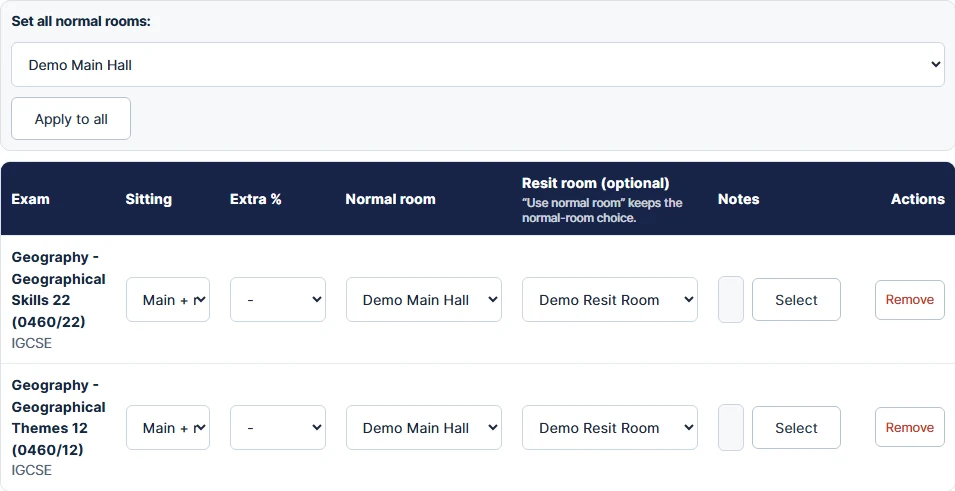
Choose the papers each candidate will sit. Same-year resits use the original paper identity with a separate sitting and date.
Where to go Candidates
Have ready
The Exam Catalog, candidate numbers and normal rooms should be ready.
On your screen Candidates. Select the image to enlarge it.
1
Add or select the candidate
Choose New Candidate or select a name. Check the candidate number and board, select their exams, and set their normal rooms.
2
Choose the sitting for each paper
Use Main, Main + resit or Resit only in the per-exam table. “Also taking a same-year resit” applies Main + resit to the selected papers; individual rows can then be adjusted.
3
Set exceptions and save
Use Resit room (optional) for a different later room; Use normal room inherits the usual room. Save the candidate, then add the matching resit dates in Data Center.
Before moving on
Preview the candidate with Main, Resit and Both. Each paper appears in the intended sitting, with the correct date and room.
Remember
Do not create a second “(R)” paper to represent a resit. Use the same catalog name/code and choose its Sitting.
Choose the right sitting
Main
Normal sitting only.
Main + resit
Normal and later sitting of the same paper.
Resit only
Later sitting only.
Data & peopleTopic 06 / 20
Record access arrangements
Record the arrangements your school has agreed for each candidate, then check how they appear in schedules and room documents.
Where to go Candidates → Access arrangements
Have ready
Configured access labels and colours, plus the candidate’s confirmed arrangements.
On your screen Candidates → Access arrangements. Select the image to enlarge it.
1
Set candidate defaults
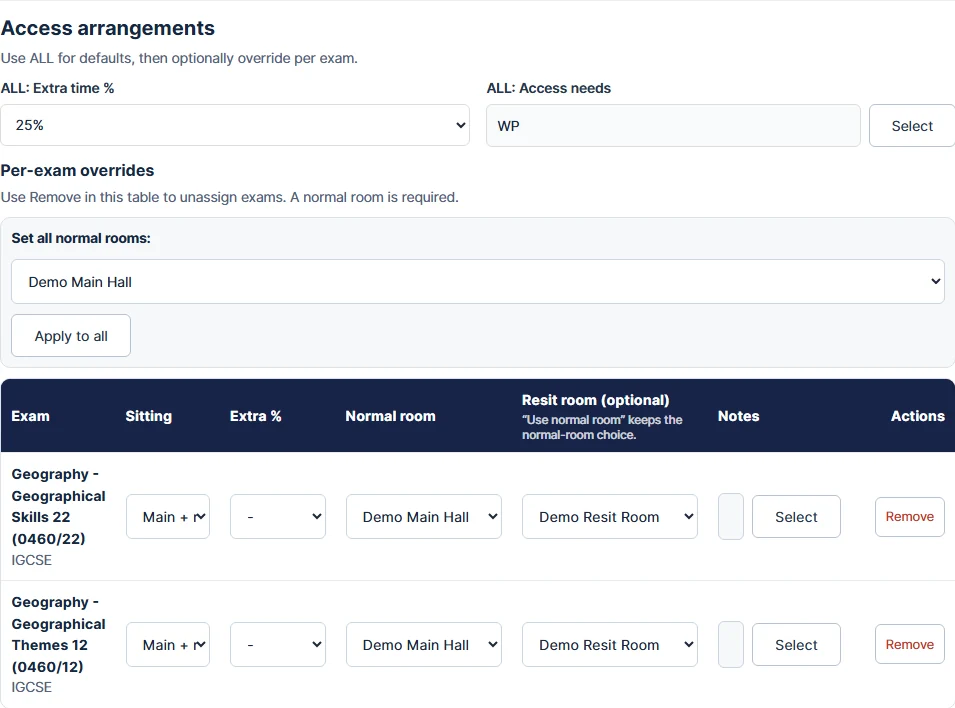
In the candidate profile, use ALL: Extra time % and ALL: Access needs for arrangements that apply across their selected papers.
2
Adjust individual papers
Use Per-exam overrides for an exception. Check Extra %, Notes and Normal room. Save the candidate after changing defaults or overrides.
3
Check the resulting finish time
Generate a timetable and check the effective duration, then inspect the register and seating plan. Use the printed colour key and labels together.
Before moving on
The arrangement is recorded against the correct candidate and paper, and any different room is also seated and staffed.
Remember
Example: a 105-minute paper with 25% extra time becomes 132 minutes after rounding up. A 09:00 start therefore finishes at 11:12. The app calculates this from the recorded arrangement; it does not approve the entitlement.
Data & peopleTopic 07 / 20
Add staff and teaching subjects
Give each member of staff a clear identity and link them to the subjects they teach. Scheduling uses their staff code.
Where to go Staff Profiles
Have ready
A unique staff code for each person, and the Exam Catalog.
On your screen Staff Profiles. Select the image to enlarge it.
1
Create or select a person
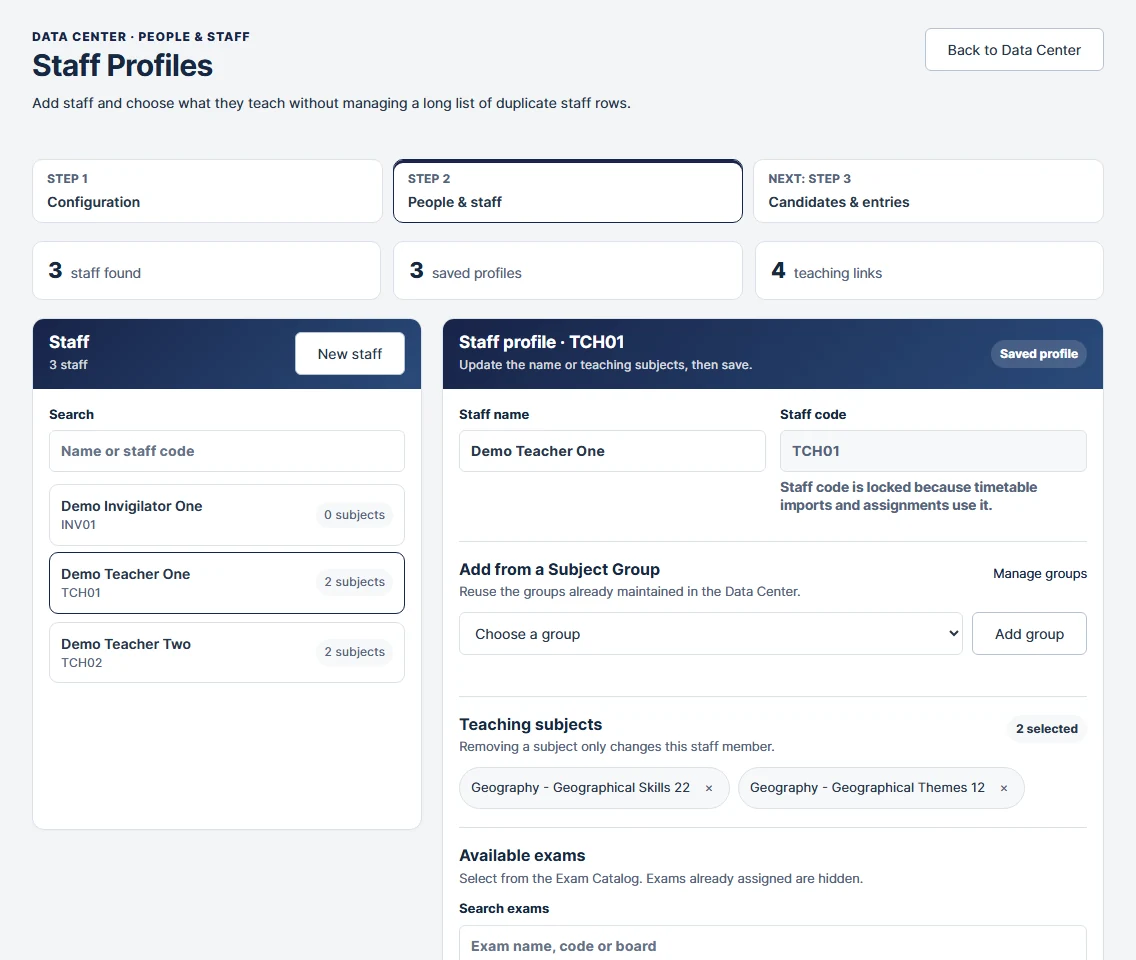
Choose New staff, enter their name and unique staff code, then save. The code locks after creation.
2
Add teaching subjects
Move papers from Available exams into Teaching subjects. A Subject Group can add a useful bundle, which you can then adjust for that person.
3
Connect scheduling information
Use Data Center → People & Staff for staff-timetable weeks and Subject Groups. Check staff codes match, then review the Daily Scheduler and Staff Schedules.
Before moving on
The person has the right name, code and teaching subjects. Their operational assignments appear in the intended periods.
Remember
Deleting a Staff Profile removes that profile and its teaching links. Uploaded timetable assignments are retained; they are separate scheduling records.
Planning & exam dayTopic 08 / 20
Set main and resit dates
The master timetable gives each paper its date, start time and duration. Keep the paper identity consistent with the catalog and candidate entries.
Where to go Data Center → Logistics
Have ready
Your board’s timetable and the school’s agreed scheduling decisions.
On your screen Data Center → Logistics. Select the image to enlarge it.
1
Enter main dates
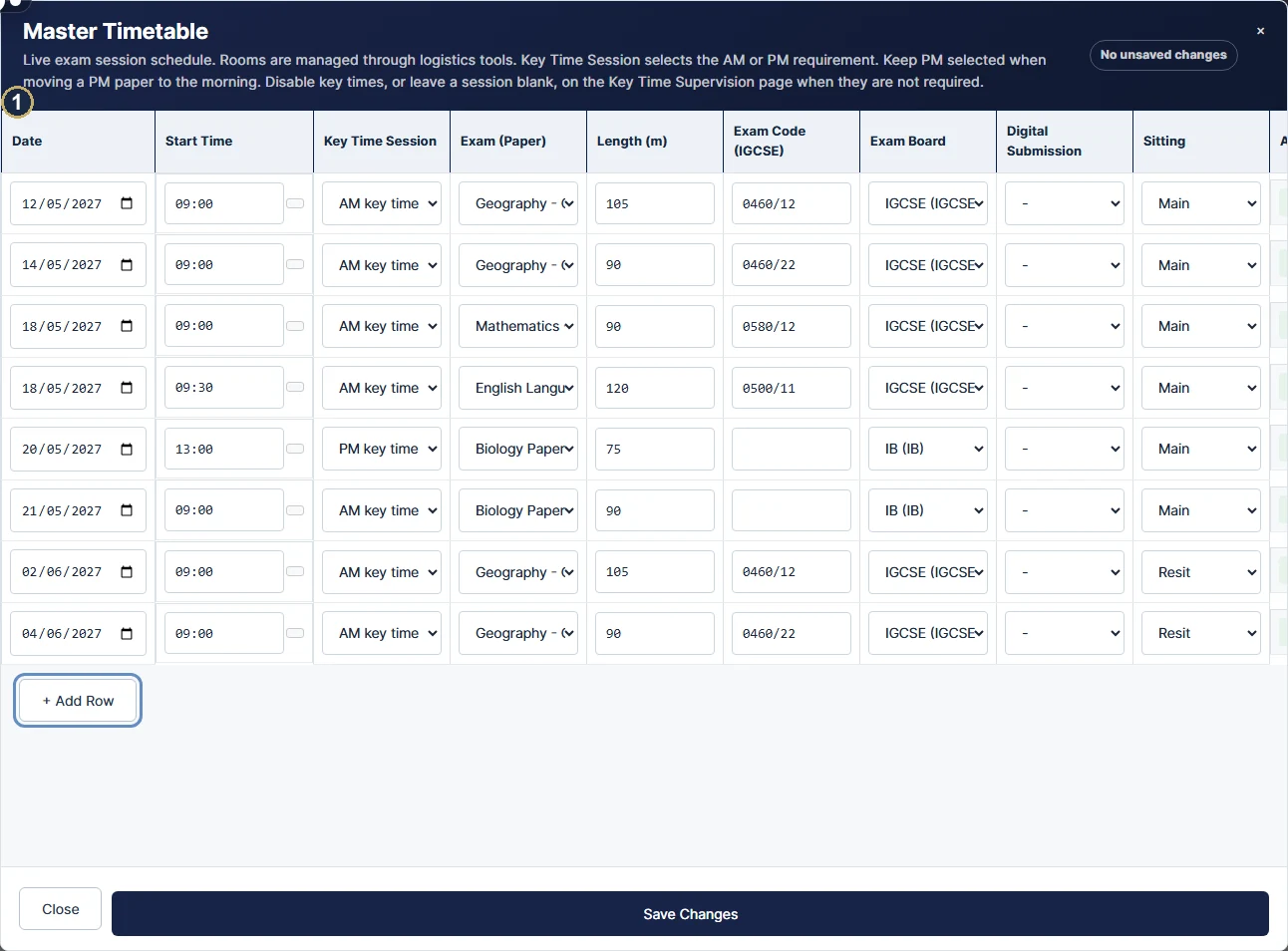
Choose Edit main dates. Enter one dated row for each main paper with its board, code/name, start time and duration.
2
Enter resit dates separately
Choose Manage resit dates. Reuse the original paper identity; candidates assigned to Resit use these later dates.
3
Check the key-time session
Where key times apply, select AM or PM beside Start Time. A PM paper moved into the morning can keep PM. Save the editor, rerun Analysis and preview a candidate.
Before moving on
The same code/name and sitting connect the candidate entry and the dated row. The start time and key-time requirement are both intentional.
Remember
When key times are disabled, stored AM/PM selections do not create holds. Re-enable them only when the exam series requires them.
Planning & exam dayTopic 09 / 20
Rooms, desks and seating
Model the room’s physical layout, then place candidates into usable desks. Keep-clear gaps represent positions where a desk must not be used.
Where to go Data Center → Logistics · Seating Plan
Have ready
Room dimensions, usable desks, access needs and candidate room assignments.
On your screen Data Center → Logistics · Seating Plan. Select the image to enlarge it.
1
Create the room layout
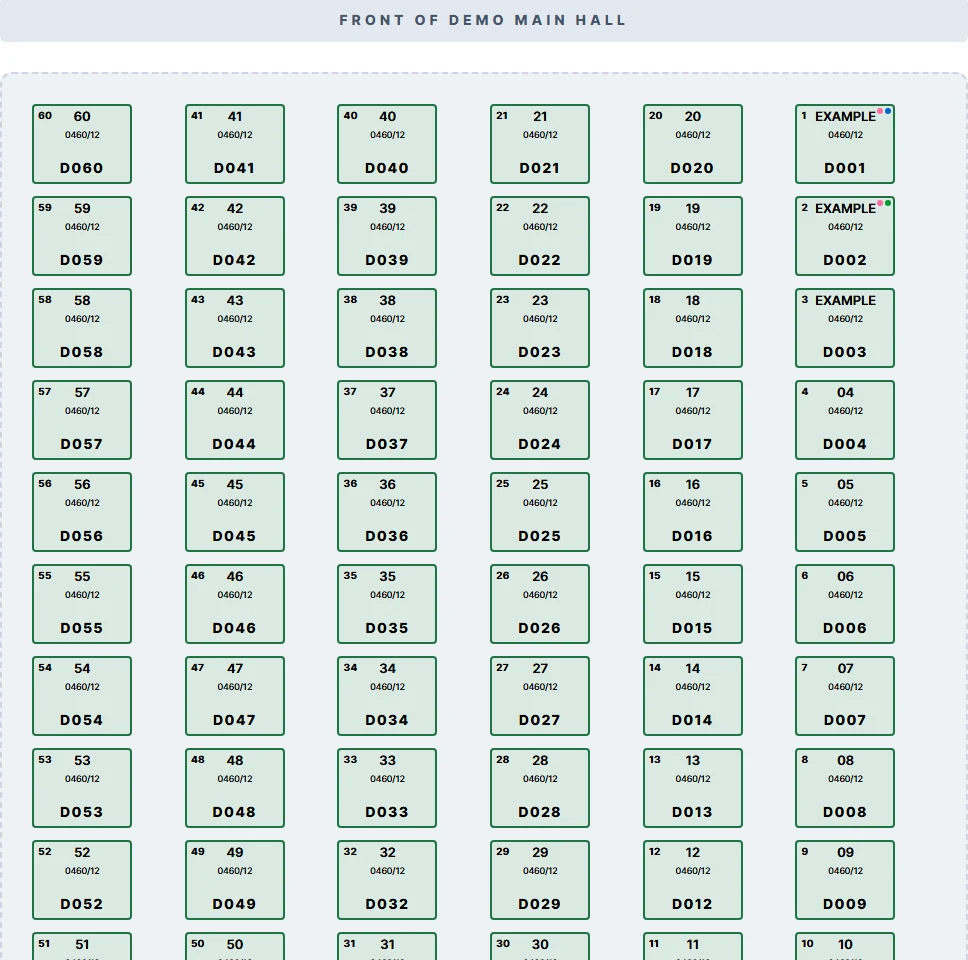
In Rooms & Seating, define rows and columns. Use Edit room shape to mark aisles or obstructions as keep-clear gaps, then finish and save.
2
Assign and review seats
Use the room editor to place candidates. Drag a seated candidate to move them, or onto an occupied desk to swap. Keyboard/touch users can select the candidate, then the destination. Choose Save Changes.
3
Preview the actual session
In Seating Plan, choose date, session and room, Load Exams, then Generate. Check the candidate names, numbers, board colours and arrangements against the room.
Before moving on
Every candidate has the expected room and seat. Keep-clear positions are still empty and visible on the printed plan.
Remember
Seating PDFs fit one room/session on one page and scale to the room. Large layouts use smaller type. Check a printed example before producing every folder; do not change the room shape merely to make the page fuller.
Planning & exam dayTopic 10 / 20
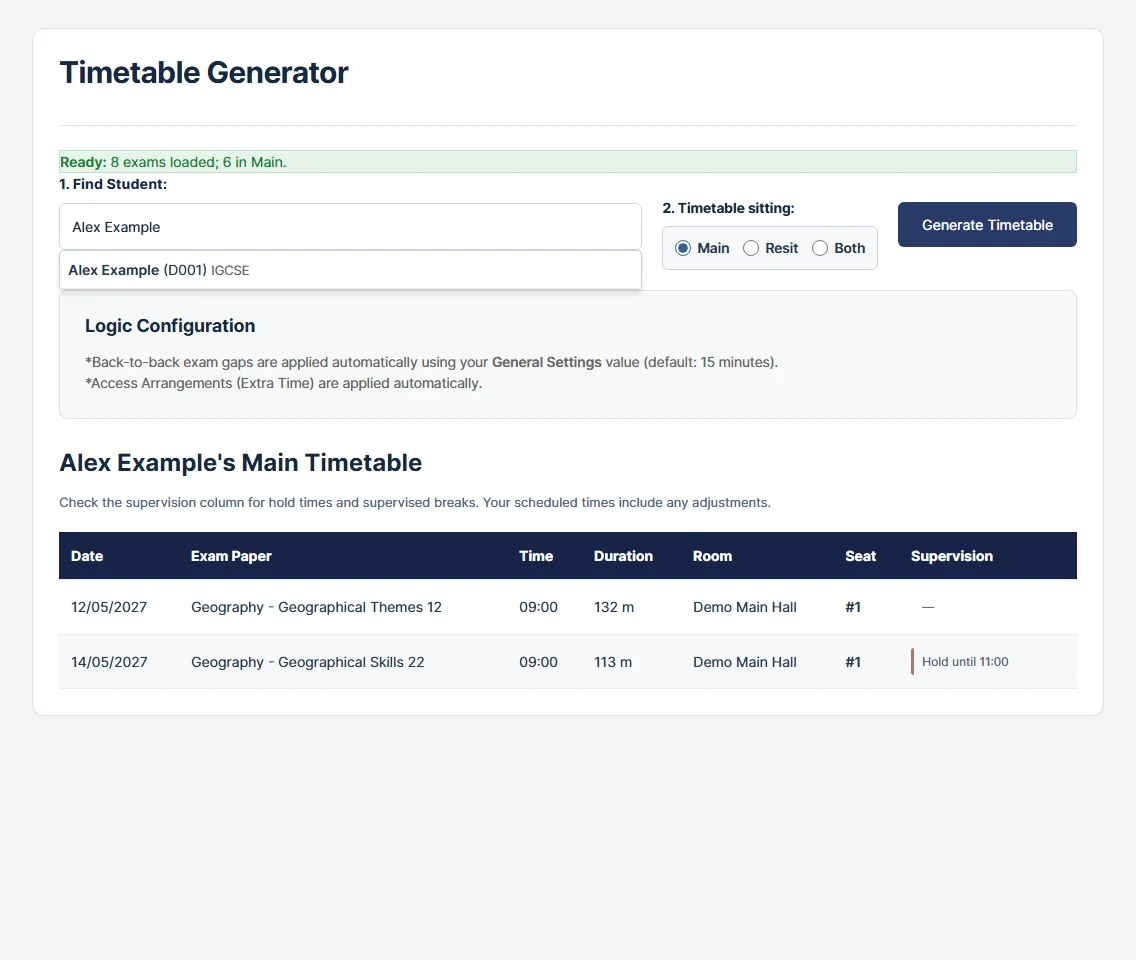
Check a student timetable
Use the screen preview to check one candidate before distributing their final PDF.
Where to go Timetables
Have ready
Saved entries, master dates, access arrangements and room/seat assignments.
On your screen Timetables. Select the image to enlarge it.
1
Find the candidate
Type a name or candidate number, choose the result, and select Main, Resit or Both. Main is the default.
2
Generate and inspect
Choose Generate Timetable. Check the paper, date, time, effective duration, room and seat. Both adds the Sitting column.
3
Read the notes, then export
Shifted marks a calculated timetable adjustment. The Supervision column gives exact holds or supervised breaks when key times apply. Use Printing Centre → Student Timetables for downloads.
Before moving on
The candidate can identify every paper and its venue. Any shift, extra time or supervision note has been checked by the exams office.
Remember
With key times switched off, the screen uses a Notes column and omits key-time holds. All-day papers keep their own label. A previously downloaded PDF must be regenerated after source data changes.
Planning & exam dayTopic 11 / 20
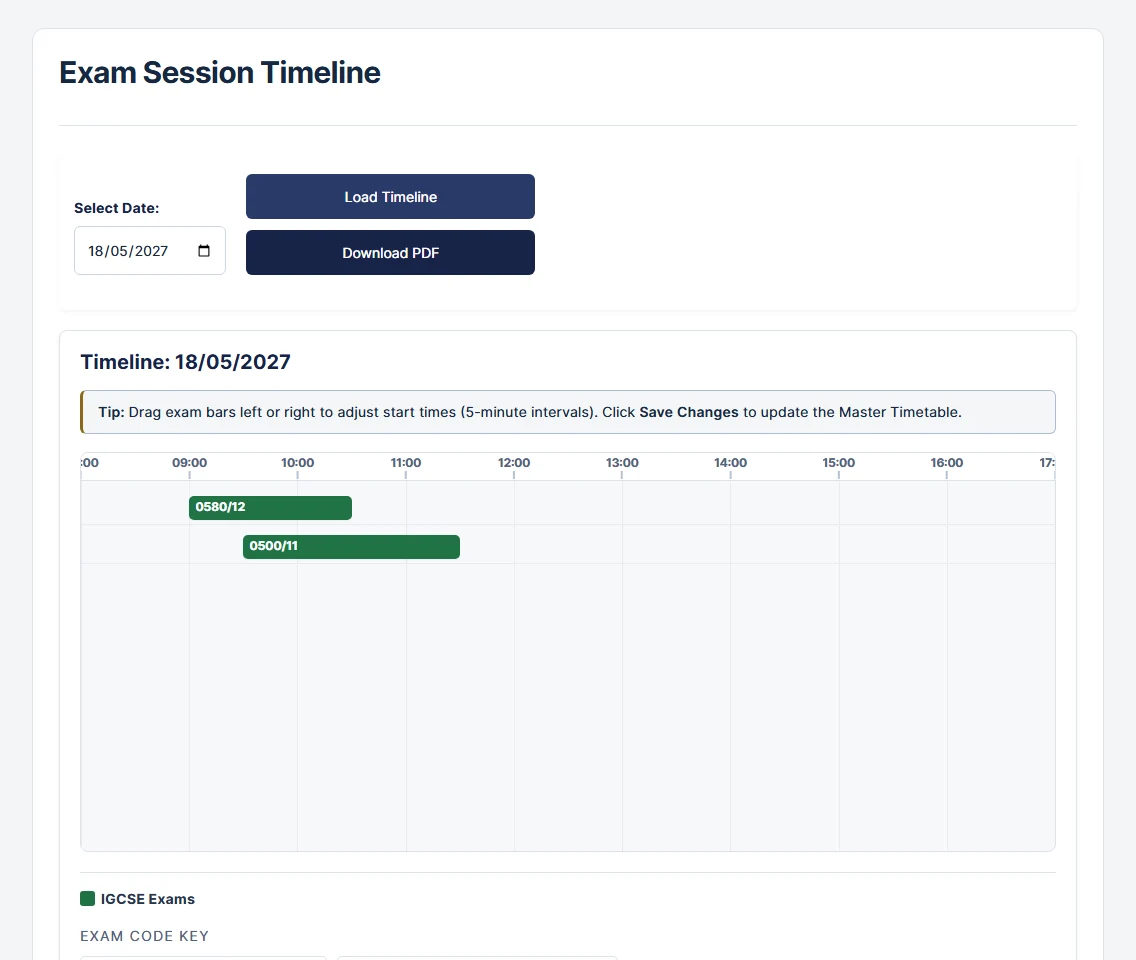
Review and adjust the timeline
See papers across the day, then make deliberate start-time adjustments in five-minute steps.
Where to go Session Timeline
Have ready
The correct date and a saved backup before a substantial timetable change.
On your screen Session Timeline. Select the image to enlarge it.
1
Load the day
Choose the date and load the timeline. Read the paper labels and board colours before moving anything.
2
Move a paper deliberately
Drag its bar left or right to adjust its start. The change remains a draft until you choose Save Changes.
3
Verify the consequences
Save Changes to update the master timetable. Recheck Analysis, affected student timetables, rooms and staff periods, then regenerate any distributed documents.
Before moving on
The saved master row has the intended start time. A moved PM paper retains its PM key-time session unless you explicitly change it.
Remember
The PDF timeline has a separate Time / length column beside the chart. The chart shows the scheduled paper duration; candidate extra time must also be checked in the student and room views.
Planning & exam dayTopic 12 / 20
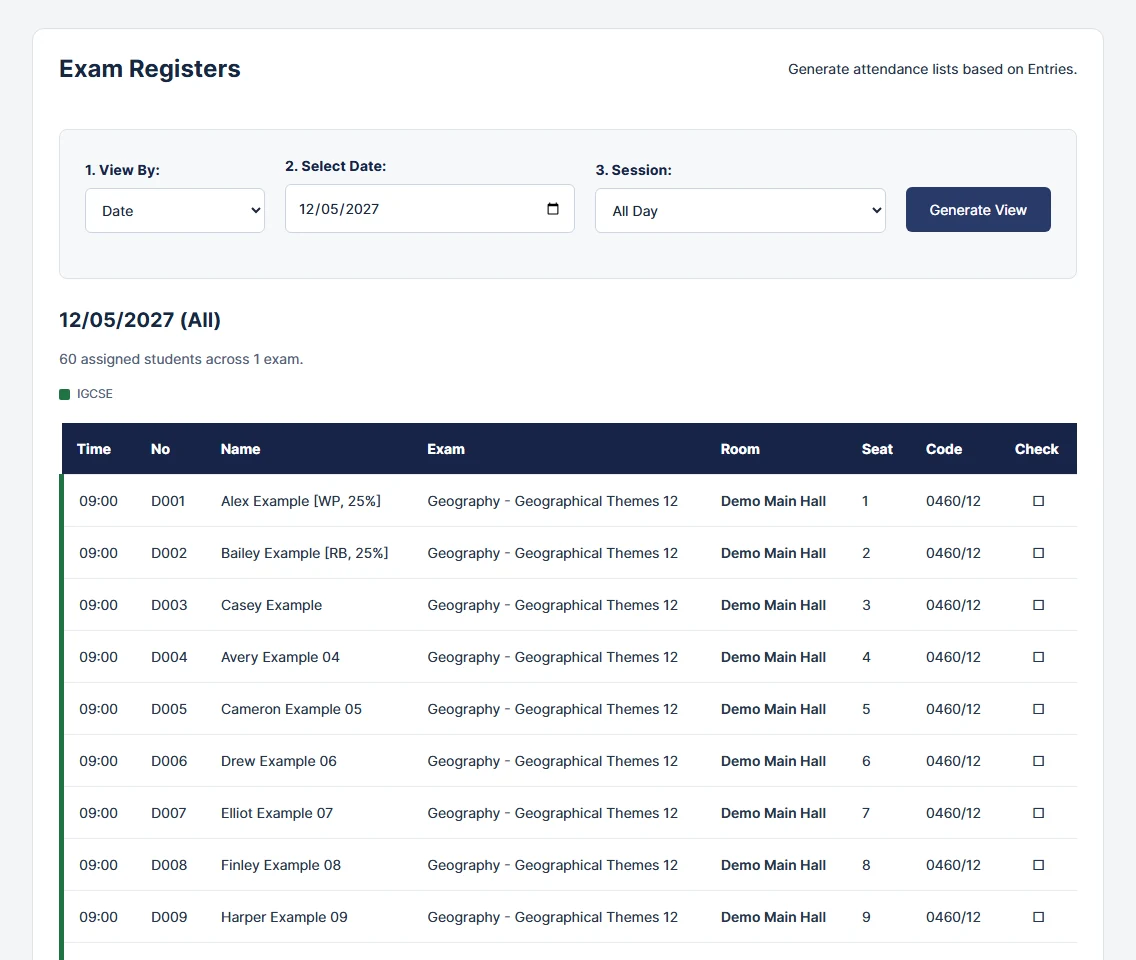
Prepare an exam register
Use a clear list of candidates for attendance and exam checks. Board colours help distinguish papers without colouring every line.
Where to go Registers · Printing Centre → Exam Registers
Have ready
The date, session, candidate entries, rooms and access arrangements.
On your screen Registers · Printing Centre → Exam Registers. Select the image to enlarge it.
1
Choose the register scope
Select the date and relevant options on Registers, then generate the preview. Check the board key and the paper/room headings.
2
Check the list
Compare candidate numbers and names with your entries. Review extra time, access notes and seating information, especially where several papers share a room.
3
Download the working copy
Use Printing Centre → Exam Registers for the required output. Preview all pages and use the attendance columns for the school’s exam-day checks.
Before moving on
A busy register contains every expected candidate, with repeated context on continuation pages and space to tick the attendance columns.
Remember
The guide examples include a 60-candidate room. Board and access colours carry information; keep the printed labels and legends visible when printing in monochrome.
Planning & exam dayTopic 13 / 20
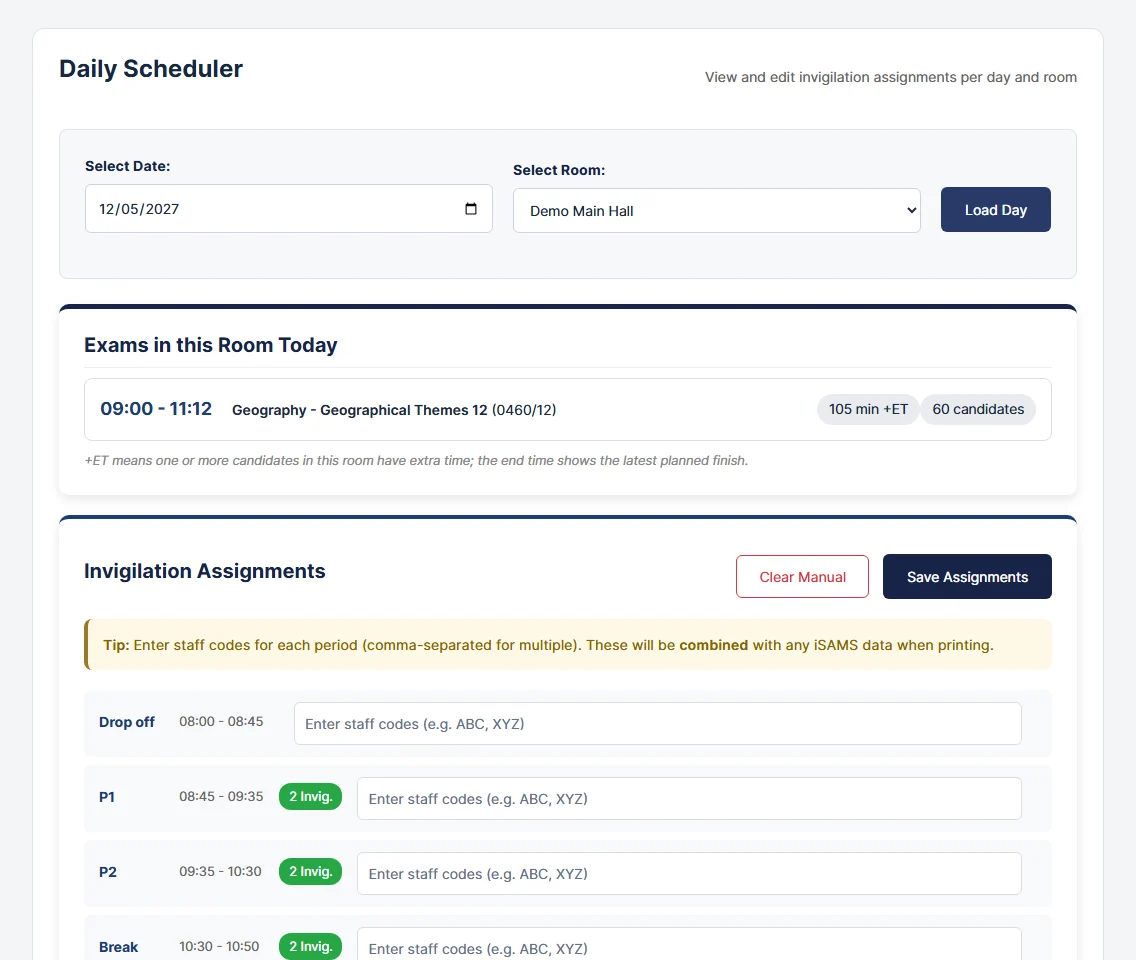
Plan the room and staff day
Review the day room by room and make staff coverage explicit for each period.
Where to go Daily Scheduler · Staff Schedules
Have ready
A checked timetable, rooms, staff codes and the periods configured in General Settings.
On your screen Daily Scheduler · Staff Schedules. Select the image to enlarge it.
1
Load the date and room
In Daily Scheduler, select the date and room, then Load Day. The listed finish includes extra time where candidates in that room need it.
2
Review period assignments
Enter staff codes for the required periods; use commas for several staff. Review imported assignments and any floating invigilator settings. Choose Save Assignments.
3
Check staff and room outputs
Open Staff Schedules to inspect each person’s duties. Download the room schedule or combined daily pack and check the latest finish is covered.
Before moving on
Every active period has the intended coverage, and individual staff schedules agree with the room schedule.
Remember
Daily room schedule PDFs include an Arrival signature column. Seating-plan PDFs no longer include a separate invigilation log.
Planning & exam dayTopic 14 / 20
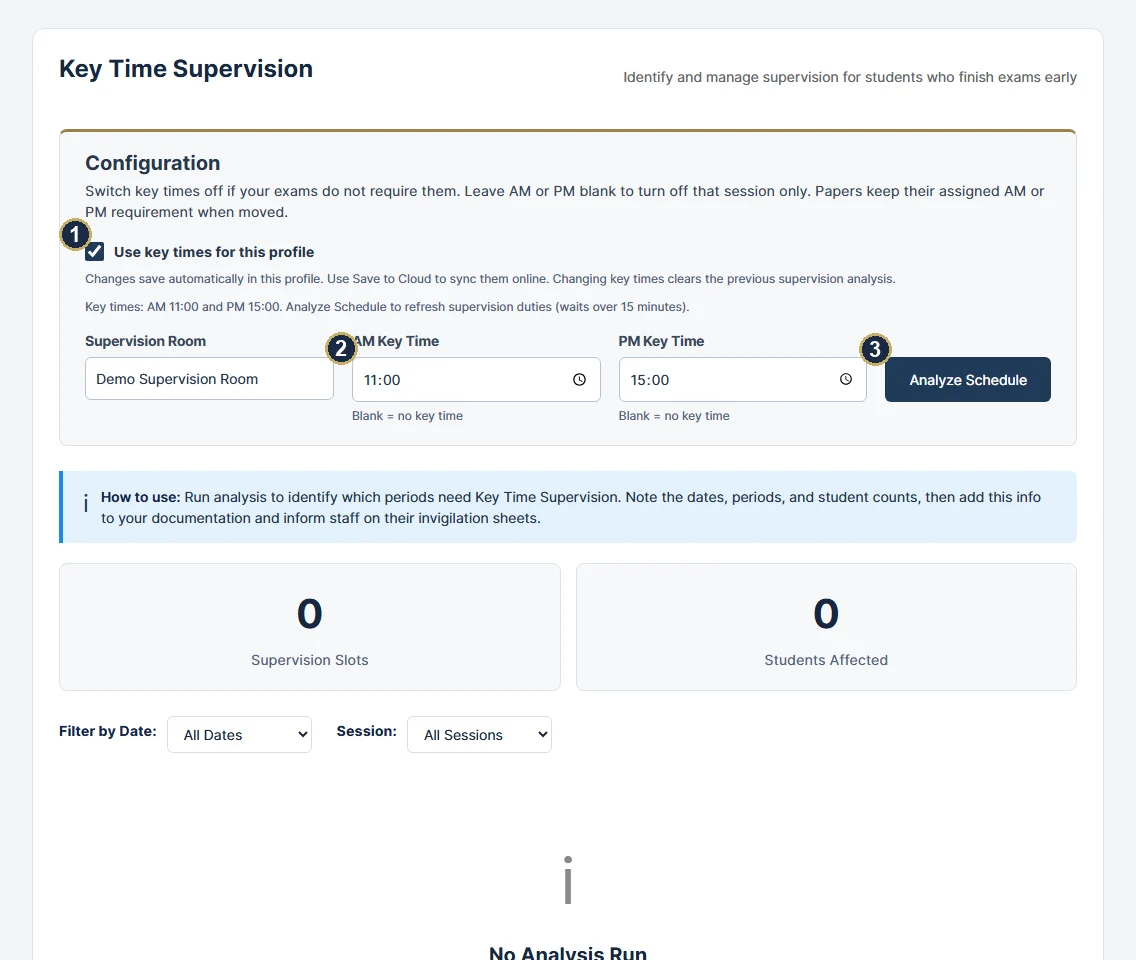
Use key times, or switch them off
Key times are optional and belong to the active profile. Use only the AM/PM requirements appropriate to that exam series.
Where to go Key Time Supervision
Have ready
The school’s required key times, or a decision that no key time is needed.
On your screen Key Time Supervision. Select the image to enlarge it.
1
Choose whether they apply
Untick Use key times for this profile to remove key-time requirements. Leave AM or PM blank to disable just that session. The checkbox preserves entered times when switched off.
2
Set and analyse when enabled
Enter the supervision room and required times. Changes save locally and clear the previous analysis. Choose Analyze Schedule to generate duties for waits over 15 minutes, then assign and save staff.
3
Check the documents
Preview a candidate finishing early and a moved PM paper. Timetables, PDFs and staff schedules use the same setting. Save to Cloud if you need the updated profile online.
Before moving on
The exact applicable time appears beside an early finish. With key times off, no key-time hold or generated supervision duty appears.
Remember
If you enable key times again, run Analyze Schedule again and check the staff assignments. Ordinary manually entered duties are not removed by this switch.
Check & downloadTopic 15 / 20
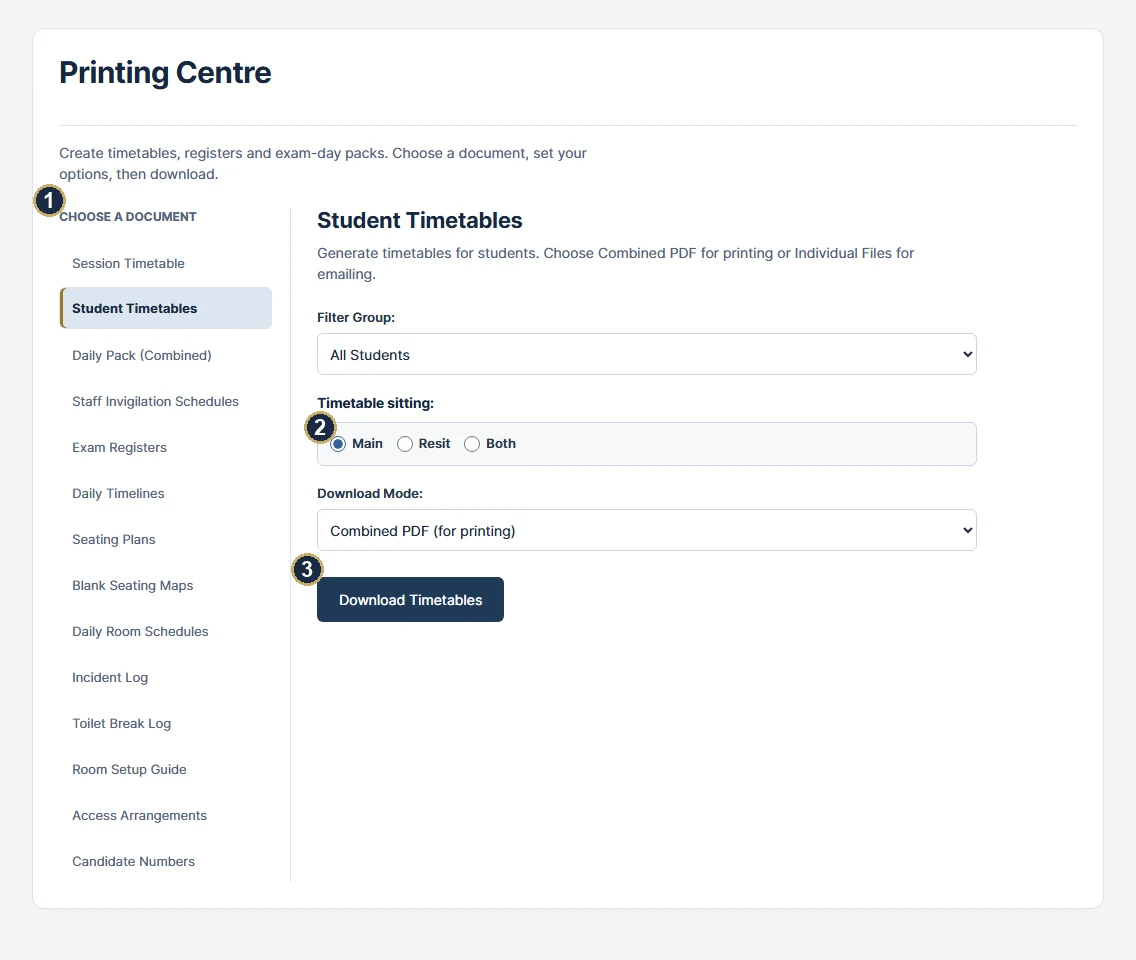
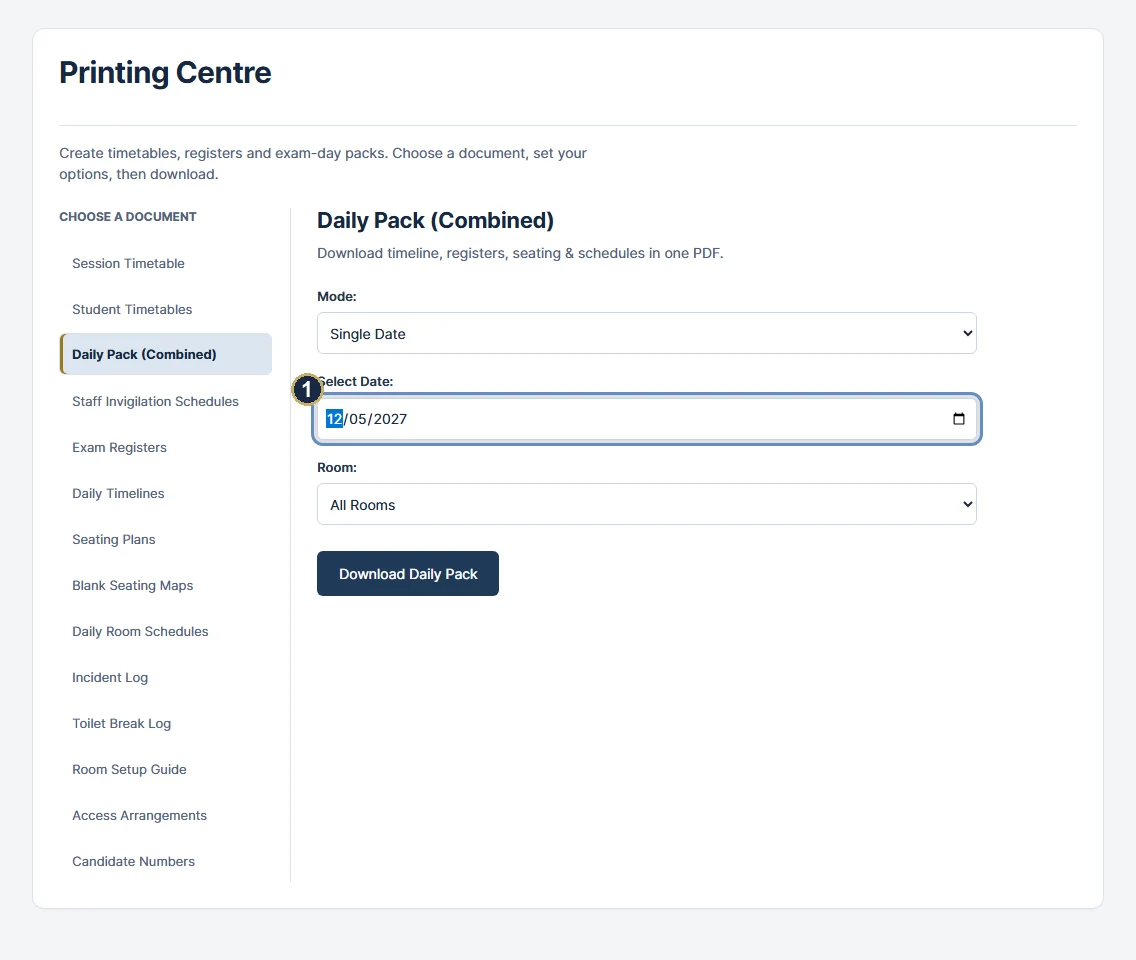
Build and download your documents
Choose the document first, then set its scope. The controls stay with that document so you can focus on one output at a time.
Where to go Printing Centre
Have ready
Run Analysis after the latest changes and check at least one candidate and room.
On your screen Printing Centre. Select the image to enlarge it.
1
Choose a document
Select from the list on the left; on a narrow screen, use the document selector. Set the date, room, student group or board options shown.
2
Choose the sitting and format
Session Timetable and Student Timetables have Main / Resit / Both choices. Combined PDF collects selected students in one file; Individual Files (ZIP) gives separate PDFs for distribution.
3
Preview before distributing
Open the downloaded file, check its first, middle and final pages, and confirm the scope. Save a backup of the profile used for the final version.
Before moving on
The filename, dates, sitting, candidate count and school branding are correct. All pages and legends are readable.
Remember
Daily Pack (Combined) brings together the day’s documents without repeating a second daily title page. Test mixed portrait/landscape and double-sided printing with one pack first.
Choose the output
Session Timetable
Full series or selected boards.
Student Timetables
Candidate PDFs, combined or ZIP.
Daily Pack (Combined)
The exam-day folder in one download.
Staff Invigilation Schedules
Each person’s duties.
Exam Registers
Candidate attendance lists.
Daily Timelines
Papers across the day.
Seating Plans / Blank Seating Maps
Filled or blank room plans.
Daily Room Schedules
Room activity and arrival signatures.
Incident Log / Toilet Break Log
Working records for exam-day events.
Room Setup Guide
Room layout and preparation checklist.
Access Arrangements
Recorded candidate arrangements.
Candidate Numbers
Candidate-number reference lists.
Check & downloadTopic 16 / 20
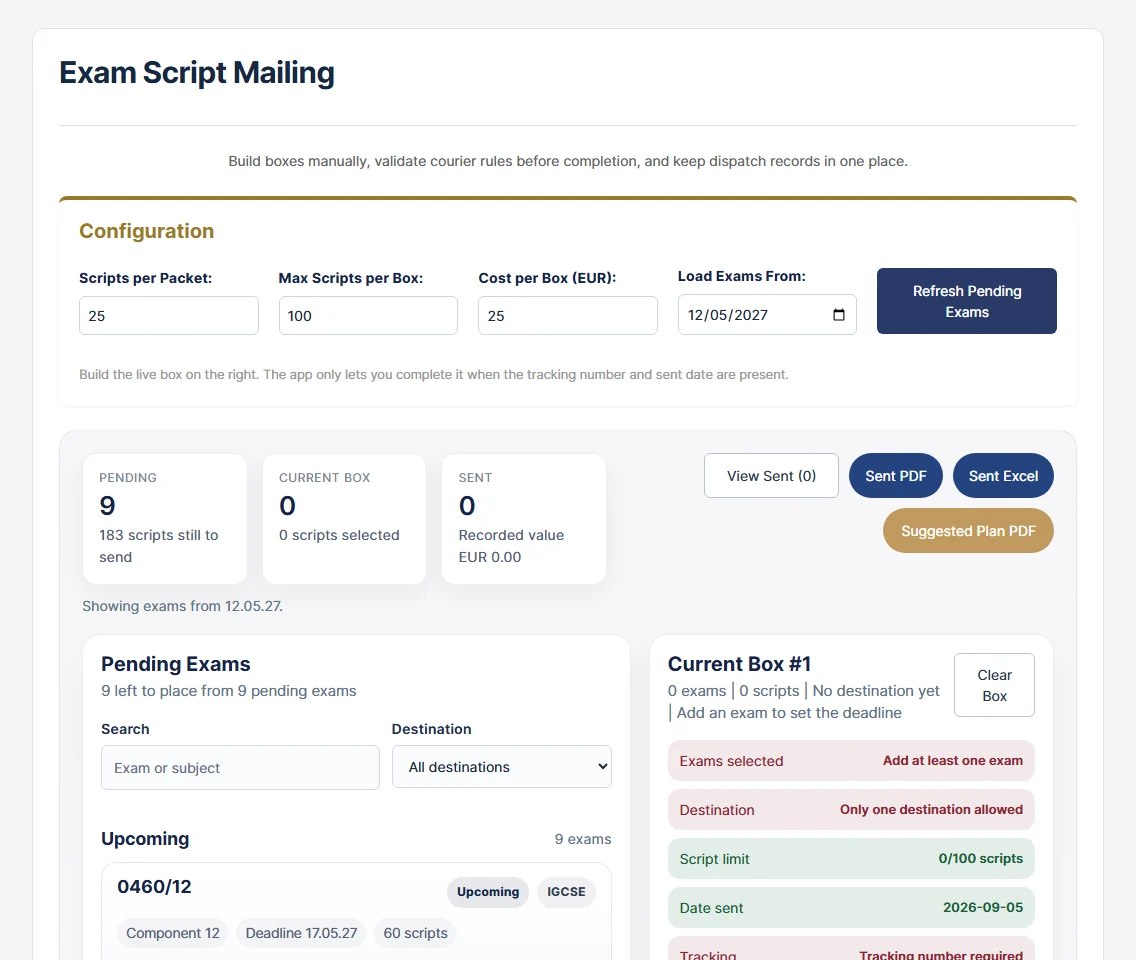
Pack and record exam scripts
Mailing organises physical exam-script dispatch: pending papers, packets, boxes, destinations and sending records.
Where to go Mailing
Have ready
Checked script counts, the destination and your school’s courier/dispatch process.
On your screen Mailing. Select the image to enlarge it.
1
Review pending papers
Set packet/box limits and the starting date, then Refresh Pending Exams. Check the expected scripts and the destination for each paper.
2
Build a box
Add papers to the current box. Review the script total and capacity. A box uses one destination; check the physical scripts match the selected list.
3
Record the actual dispatch
Enter Date Sent and the tracking number, then Complete Box when it has been sent. Use proof-of-sending and expected-list outputs to support your records.
Before moving on
The sending record matches the actual box, destination, date, tracking number and scripts handed over.
Remember
Completing a box records your action; it does not book a courier or send student timetable emails. Check suggested deadlines against the instructions for your exam series.
Check & downloadTopic 17 / 20
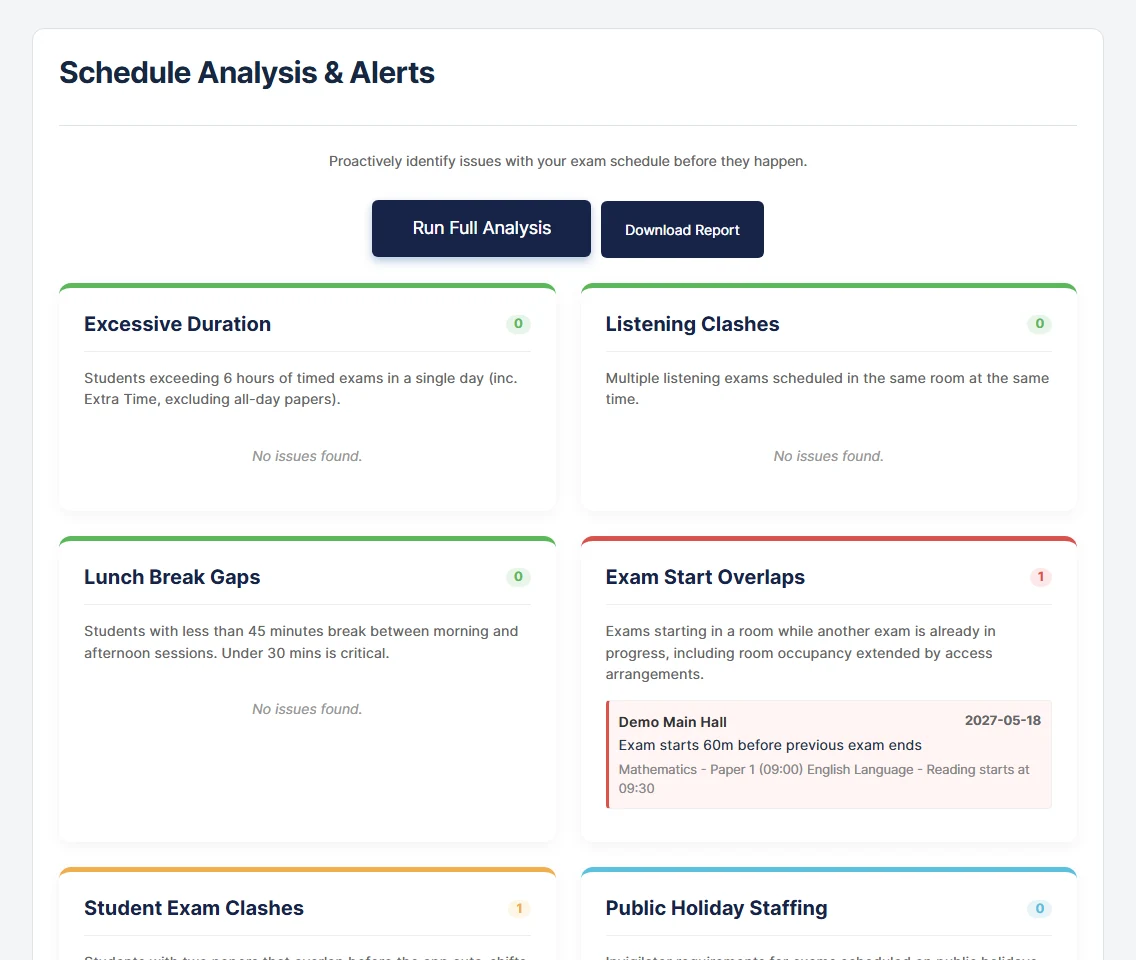
Find and fix planning issues
Analysis brings scheduling and data issues together so you can correct the source before printing.
Where to go Analysis
Have ready
Your latest candidate, timetable, room and staff changes have been saved.
On your screen Analysis. Select the image to enlarge it.
1
Run the checks
Choose Run Full Analysis and read the summary. Start with errors, then review warnings and information.
2
Correct the underlying record
Use the finding to identify the candidate, paper, room or staff period. Make the change in its source workspace rather than editing an exported PDF.
3
Run again and compare
Rerun Analysis after corrections. Check the affected timetable or room output, then regenerate the final documents.
Before moving on
Each remaining finding has been reviewed and the final documents agree with the corrected source data.
Remember
A clean summary is a useful planning check, not a replacement for reviewing the final exam instructions and printed documents.
Check & downloadTopic 18 / 20
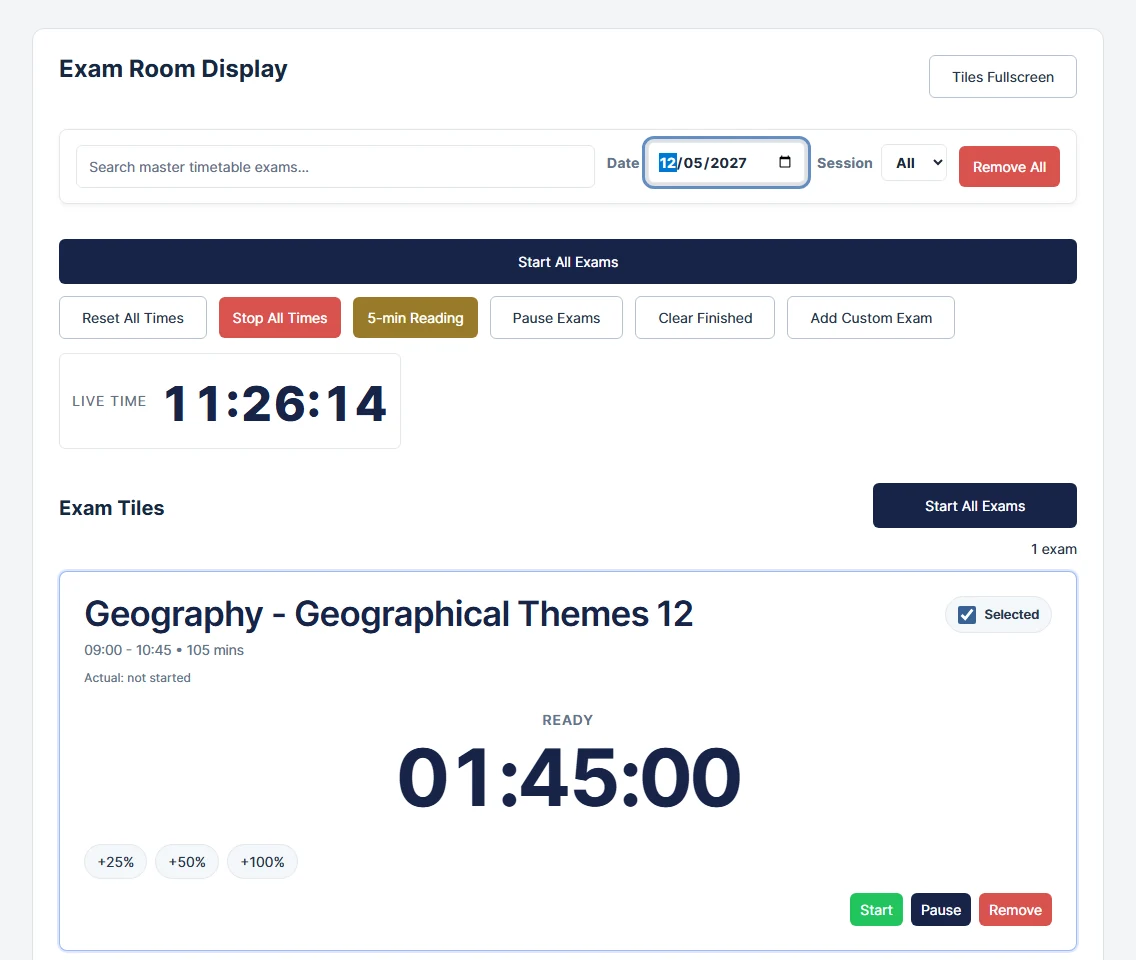
Set up the exam room screen
Present the papers and timing information the room needs. Configure the display before candidates enter.
Where to go Exam Room Display
Have ready
The correct date/session, checked durations and a suitable room screen.
On your screen Exam Room Display. Select the image to enlarge it.
1
Choose the papers
Filter by date/session or search the master timetable, then select the required exam tiles. Remove papers that do not belong in that room.
2
Check the controls
Review the selected papers and durations before Start Selected Exams or Start All Exams. Apply any required extra-time display and use pause/resume controls deliberately.
3
Present and supervise
Choose Tiles Fullscreen and check visibility from the room. The actual-start status and countdown should match what the invigilators have announced.
Before moving on
Only the intended papers appear, and the displayed starts, durations and extra-time indicators are correct.
Remember
The 5-min Reading control displays a reading-time screen. Use it only where appropriate to the paper; the control does not decide whether reading time is permitted.
Practical helpTopic 19 / 20
Your exam-day checklist
Use this short route before each exam day and again after any late change.
Where to go Analysis → Printing Centre → exam room
Have ready
The final working profile and a recent backup.
On your screen Analysis → Printing Centre → exam room. Select the image to enlarge it.
1
Before printing
Confirm the date, sitting, rooms, late candidate changes and access arrangements. Run Full Analysis and check staff coverage through the latest finish.
2
Prepare the folder
Generate Daily Pack (Combined). Check registers, seating plans, room schedules and the timeline. Keep the arrival-signature column available for staff.
3
Brief, run and record
Brief invigilators on changes and any key-time duties. Check room displays before use. Record incidents and script dispatch through your school’s agreed process.
Before moving on
The room team, printed folder and on-screen information all use the same checked version.
Remember
If an entry, time, room or arrangement changes, regenerate the affected outputs and replace the superseded copies.
Practical helpTopic 20 / 20
When something does not look right
Most mismatches come from the active profile, the selected sitting or a paper identity that does not match. Start with those checks.
Where to go Check the active profile, then the source record
Have ready
Note the page, candidate/paper concerned and what you expected to see.
On your screen Check the active profile, then the source record. Select the image to enlarge it.
1
Protect your current work
Download a local backup before trying imports or restores. Do not clear browser storage to fix an old-looking page; local profiles may be stored there.
2
Check scope and identity
Confirm Current Profile, date, room and Main / Resit / Both. Compare candidate entries with the master paper code/name and sitting.
3
Refresh and ask for help
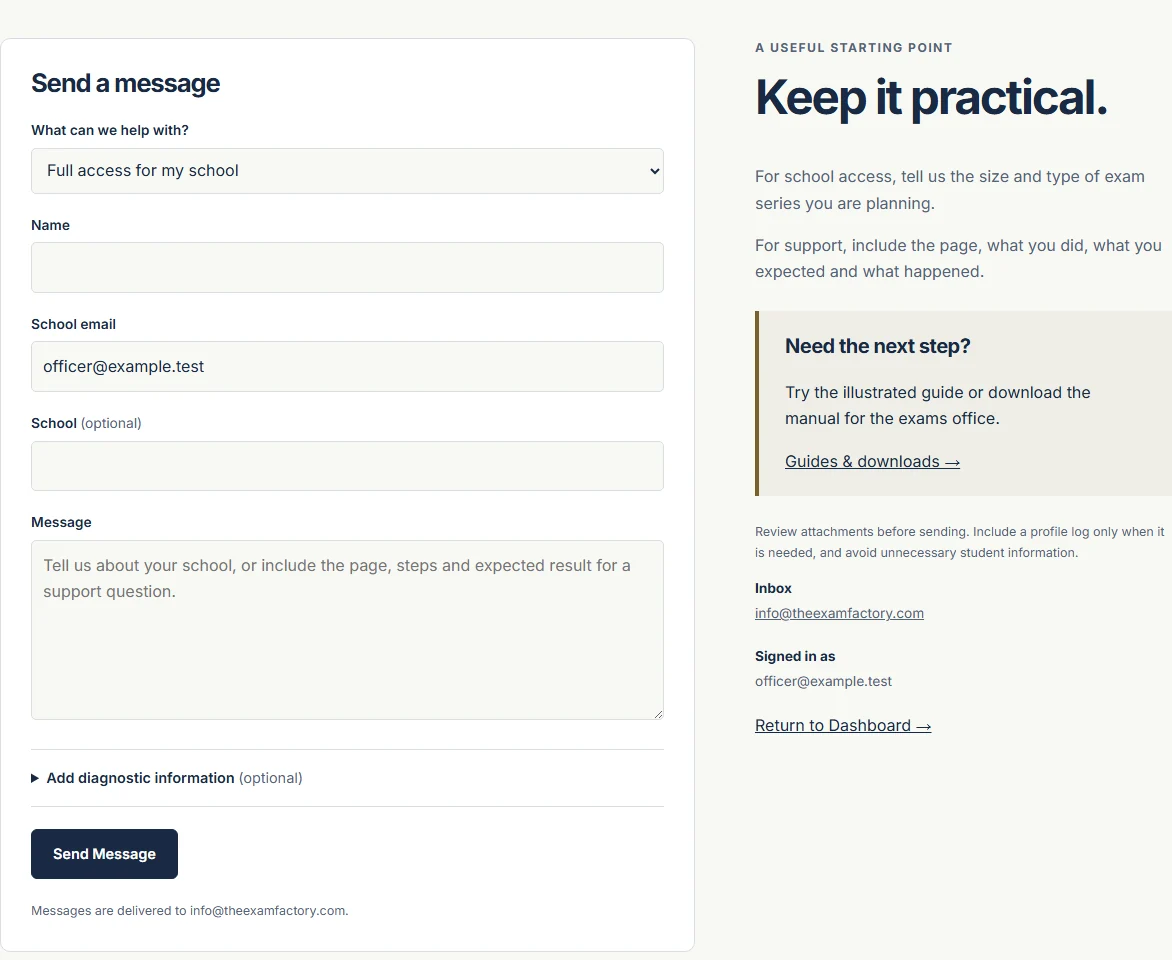
For stale page styling, use Ctrl+F5. For an unresolved issue, use Contact with the page name, steps and expected result. Share a cropped screenshot without unnecessary student data.
Before moving on
You can explain the issue with a small reproducible example, and your original profile is still recoverable.
Remember
A profile change log may contain school information. Attach one only when needed, and review it before sending.
Quick fixes
A paper is missing
Check the sitting, candidate entry and matching master code/name.
A resit has the wrong date or room
Check per-exam Sitting, Manage resit dates and Resit room.
An old “(R)” paper remains
Remove its candidate entry and old master rows; the catalog alone is not enough.
The displayed finish is later
Check extra time, minimum exam gaps and any Shifted label.
An unwanted hold appears
Check Key Time Supervision and the paper’s AM/PM requirement. Regenerate the PDF.
A student is unroomed or unseated
Check the candidate’s normal/resit room and the matching seating layout.
Another device shows older data
Save to Cloud, then refresh and explicitly open that copy on the other device.
Cloud saving fails
Keep a local backup, retain the browser copy, check sign-in/access and retry.
A download does not appear
Read any output-safety message and check the browser’s downloads list.
A printed page is cropped
Check paper size, scale and orientation in print preview; test a small sample.
All screenshots use a purpose-built synthetic profile. No live student, staff or centre data is shown. Reviewed September 2026. Contact support